
1. Email from support.
After creating your environment, the technical department will send you an email containing:
- Link to the panel
- Login
- Password
- Assigned public IP address
2. Login to the panel.
Using the assigned data, log in to the panel.
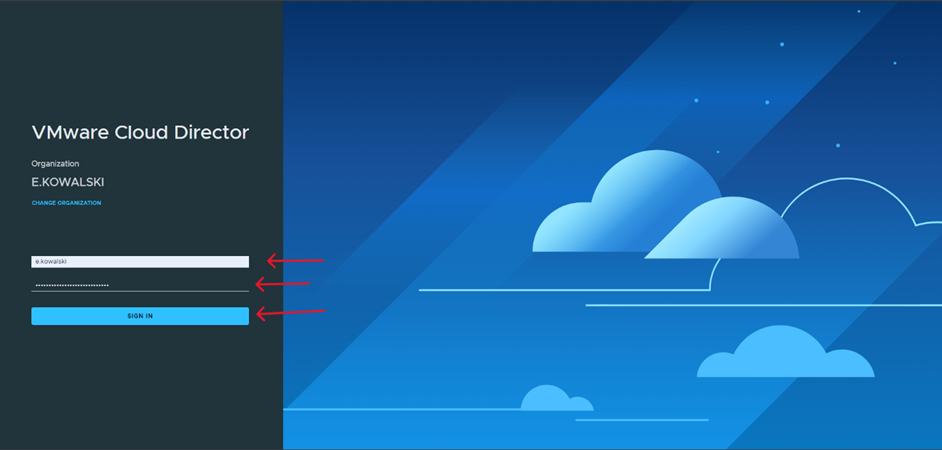
3. Virtual Machine Configuration.
- Go to assigned environment.
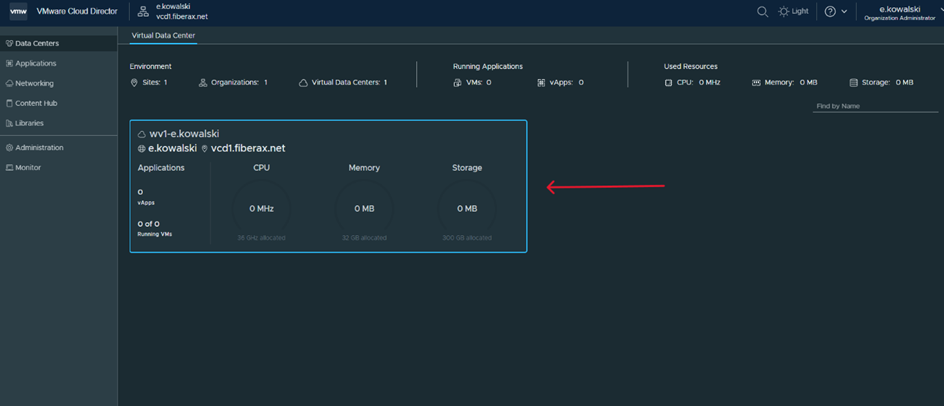
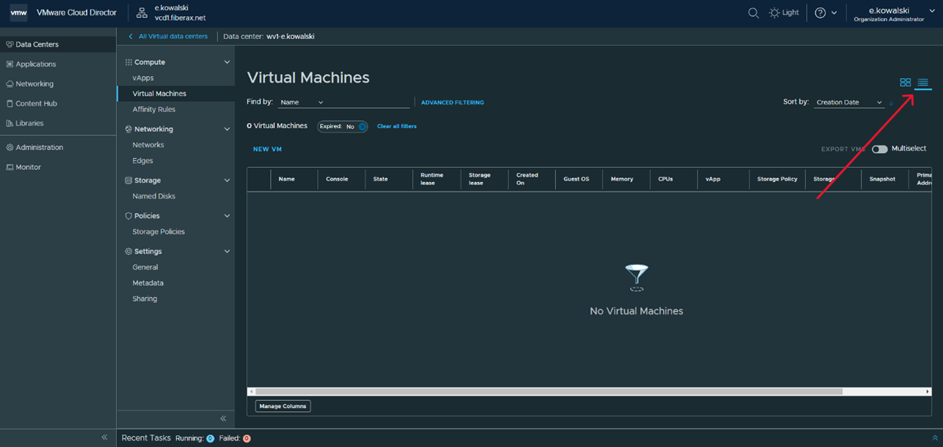
- For the purposes of this guide, we are changing the view from tiles to list.
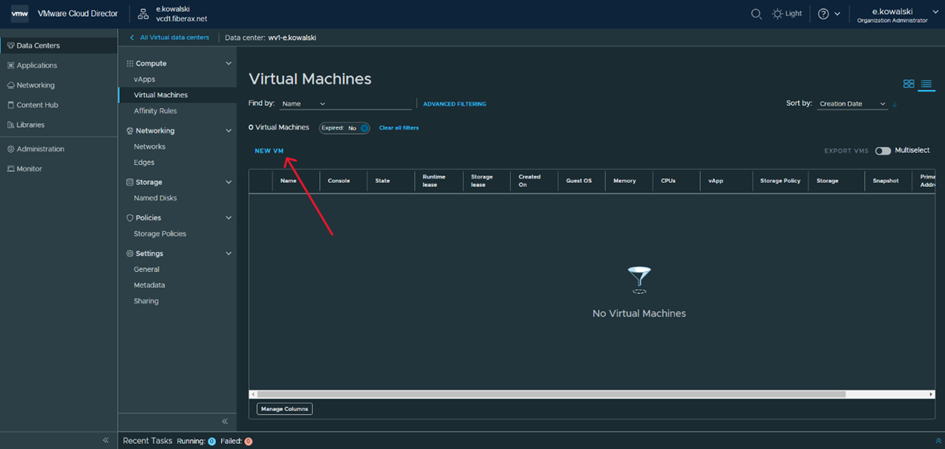
- Add a new machine using the button NEW VM
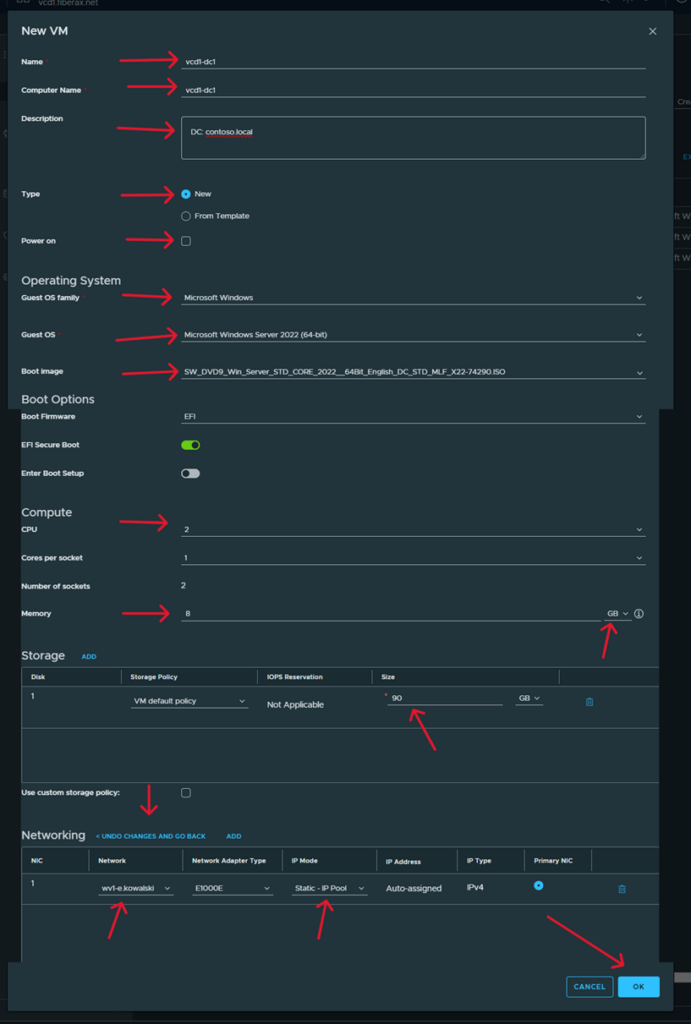
- Go to the virtual machine parameter settings.
For the purposes of this guide, we are allocating 2 CPUs and 8 Gb RAM.
Also remember to enter your network settings.
After entering the settings, confirm OK.
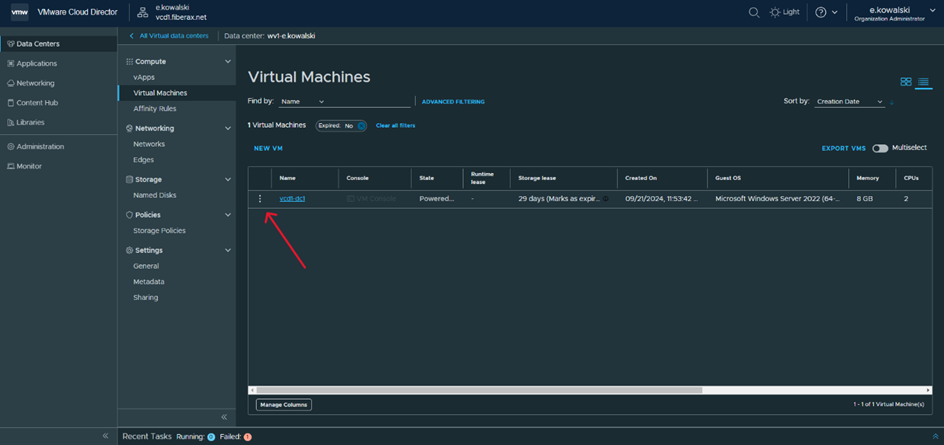
- Wait until the machine is created.
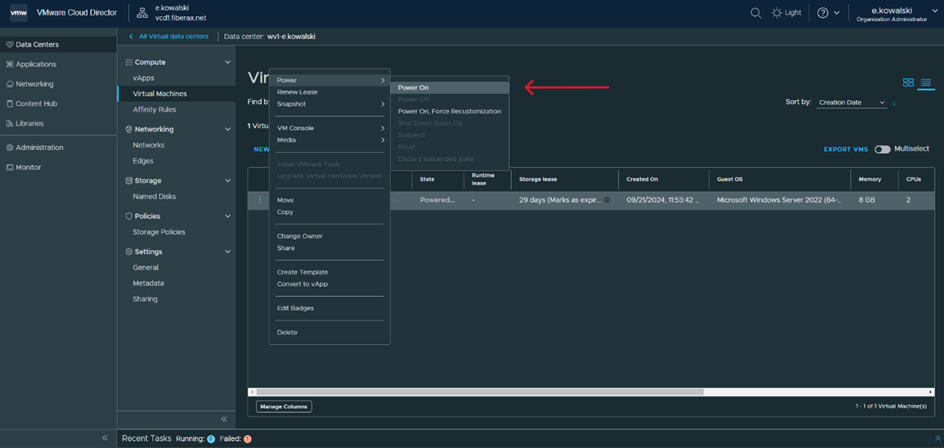
Then go to machine options.
- Start the machine by selecting Power on.
| Attention |
| We recommend assigning machine names in the form cloud_name-function-number |